Your private calendar. Open to possibilities.
Your plans.Everything in place.
A calm place for events, drafts, notes and files.
Make it yours. Connect your AI when you want a hand.
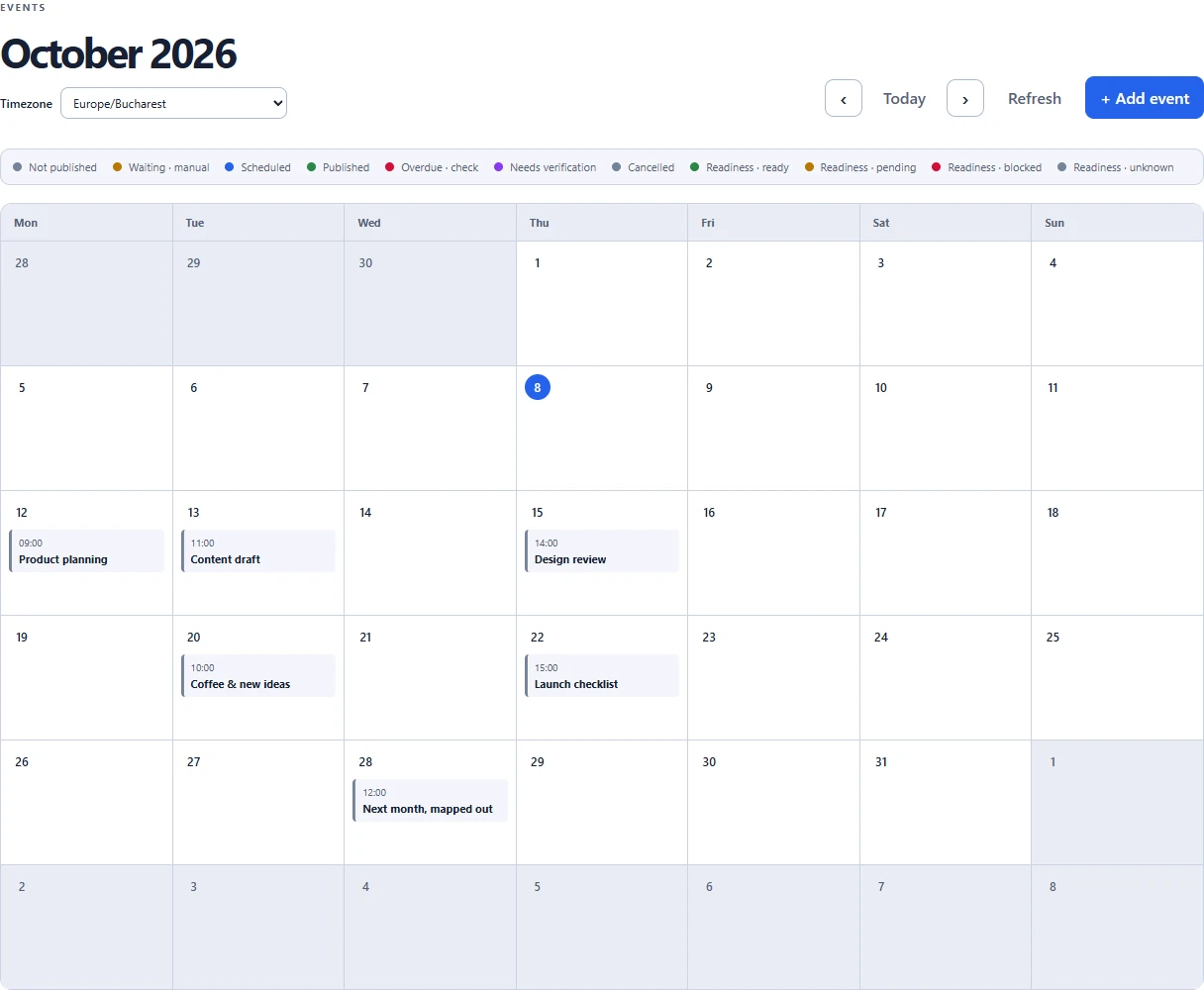
See the plan at a glance.
Give every idea a date. Move an event without losing the details behind it.
Keep the context close.
Notes, draft text and supporting files stay with the event they belong to.
Pick how you work.
Use the calendar yourself, or ask a connected AI assistant to help.
More than a date and a title
A place for every
little detail.
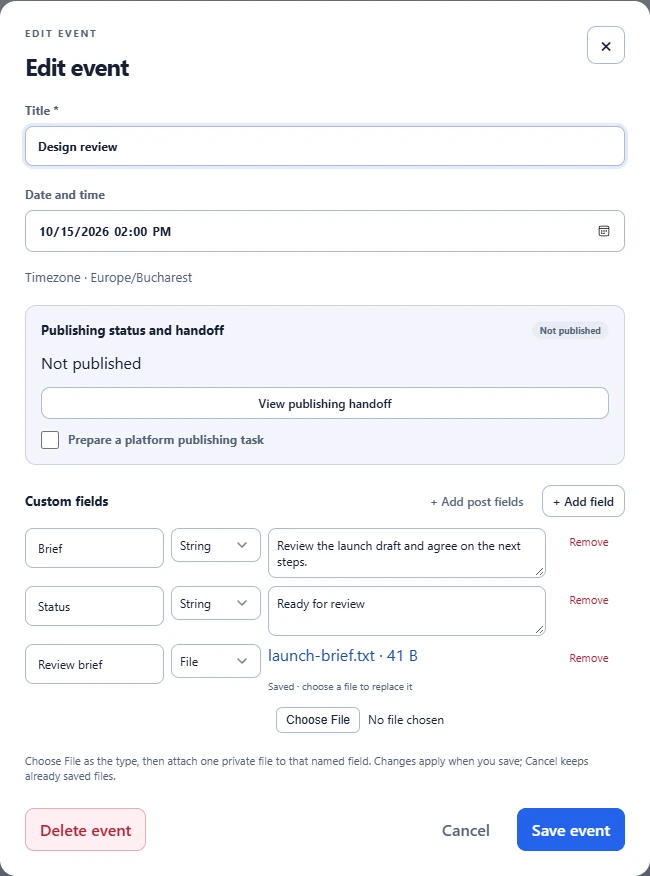
A brief for the next review. A draft that needs one more pass. The file you will need on the day. Keep it all inside the event.
- Name your fields to fit your work
- Keep text, numbers, true/false values and structured data
- Attach files to clearly named File fields
- Move the date; keep the details
 Your calendar, one conversation away.
Try asking your connected AI
Create a project review on October 15 at 14:00 in Europe/Bucharest. Add a note: “Review the launch draft.”
An example prompt. Your connected assistant can create the event and read it back so you can check the saved details.
- Codex
- ChatGPT
- Compatible MCP clients
Work in your own words
An extra hand.
Still your calendar.
Find an event, save a draft, move a review or retrieve a file through a connected AI client. You choose the account and the access you allow.
- Connect only when you want to
- Review permissions before allowing access
- Manage connections in account settings
A simple start
From an idea to a plan.
Start with the calendar. Add the details as you go.
Make yourself at home.
Continue with Google, or use a one-time code or link sent to your email. Your calendar is private.
Put something on the calendar.
Pick a date and time, add a title, and bring in the notes and files that make the event useful.
Bring your AI along.
Follow the connection guide, review the requested access, and ask your assistant to help with your plans.
Your space. Your choices.
Private by default.
Control stays with you.
Know what you are connecting and what it can do. Keep planning separate from publishing.
Read our privacy policyYour account, your calendar.
Events and files require authenticated access to the account they belong to.
Access you can take back.
Review connected clients and revoke a connection from account settings.
A saved draft stays a draft.
Creating or moving a calendar entry does not publish or schedule a social post.
See it in action
A real workflow.
In under two minutes.
Explore the calendar, create an event with AI, keep a file beside the draft, and move the plan without losing its details.
Open the demo with chaptersDo I need an AI assistant?
No. You can create, edit and organise events in the web calendar. AI connections are optional.
Does Google sign-in connect my Google Calendar?
No. Google sign-in uses basic profile information to identify your account. It does not give nambli access to Google Calendar, Gmail or Drive.
What can I keep in an event?
A title, date and time, plus your own named fields for text, numbers, true/false values, structured JSON and files. Keep a brief, a draft or a supporting document with the plan.
How many records can I keep?
New Free accounts can keep 15 records per planned calendar month; Basic access allows 100. Existing accounts keep their preserved unlimited record allowance. Premium's 500 is planned and unavailable. Each saved entry counts, including empty drafts and published, cancelled or archived posts. Publishing and archiving do not release capacity; deleting a record does. Months use the account's fixed UTC timezone, independently of the display timezone. A full destination month blocks a move and keeps the original unchanged. Exceeding an allowance never removes your saved content. Paid checkout is not available yet.
How much file storage do I get?
New Free accounts include 250 MB; Basic includes 10 GB. Existing accounts keep at least 500 MB or their larger preserved allowance. Premium's 50 GB is planned and unavailable; paid checkout is not available yet. MB and GB use decimal bytes. The maximum upload is 25 MiB per file. Account settings show actual used and allowed storage, including excess usage after a plan ends. All existing files stay available to download, export or delete, and posts remain editable. New uploads and replacements need available space; a replacement reserves the full new file while keeping the original.
Can I use it on my phone?
Yes. Open nambli in your mobile browser. You can also add it to your home screen where your browser supports installing web apps. An email code lets you return to the app to finish signing in.
Does saving an event publish a social post?
No. Calendar entries hold your plans and drafts. Publishing needs a separate, explicitly configured workflow; calendar changes alone do not publish or schedule content.
How do I connect or disconnect an AI client?
Start with the AI connection guide. Review the account and permissions before allowing access. You can later revoke that connection in account settings.
Give your next idea a place.
Start with one event. Keep everything that belongs with it.